WND Gateway / Screen Access
Choose which mainframe apps each team can open.
Give contractors access to Claims Inquiry while keeping Payroll off limits. Select the applications, screens and field values a person needs in the managed Gateway terminal. Publish those rules by role or individual without changing the host application.
Interactive walkthrough
Set a rule. Try it as the contractor.
Follow the one-minute tour or explore each step yourself. This simulation uses fictional data and runs entirely in your browser.
Administrator
Approve the applications this role can open.
Choose which entries on the shared host menu belong in the contractor’s workflow. Start with Claims Inquiry.
Contractor application access
Only allow what I approve
Claims Inquiry
Field policy
Application selection
Signed in as Contractor
Policy decisions
Contractor · Example policy revision 1
Read the walkthrough transcript
- The administrator selects the Contractor role and approves Claims Inquiry on the application menu. Billing and Payroll stay unavailable.
- Inside Claims Inquiry, the administrator chooses the Region field and approves NE, SE and SW.
- The contractor’s reviewed policy takes effect. The example refuses Payroll. The contractor opens Claims Inquiry, corrects an invalid region and runs a search.
- The example audit record shows the action, decision and policy revision without the entered field value.
In WND Terminal
Map the menu your team already uses.
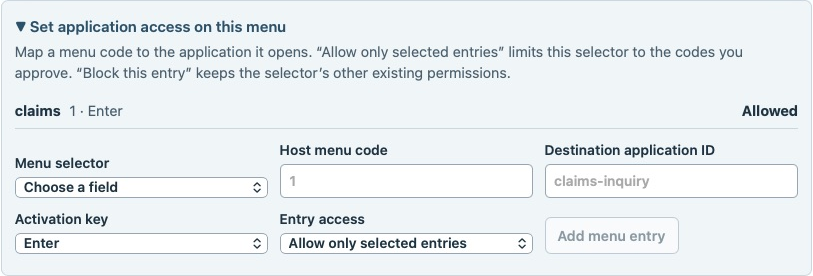
The Screen Access editor pairs a host menu code with its application and activation key. Here, selecting 1 with Enter opens Claims in a training workflow.
Two ways to set the starting rule
Approve only what a role needs
Walk a contractor through the menu, the search screen and the result. Approve the inputs and keys needed for that job. If the policy cannot recognize a protected panel, the session ends and the administrator can review the layout.
Keep normal access with specific limits
For an experienced team, allow the usual workflow and restrict a particular application, screen, field or action. A newly introduced host screen can be accessible with this starting rule.
Deployment
Where the rule applies
Screen Access applies to the exact host, port, protocol and transport in the published policy. Host authorization still applies. Other emulators and direct host APIs follow your existing access controls.
Read the deployment guide →- Managed Gateway
- WND Gateway 1.0.837 supports single-byte, formatted 3270 and 5250 screens. It checks each governed submission and withholds restricted returned panels.
- Direct desktop
- WND Terminal 1.0.837 includes signed-policy support for managed Windows, Mac, and Linux clients. Before rollout, test the assigned user and host on each installed platform. Use the managed Gateway for protected sessions during that pilot.
- Automation and other routes
- Governed AI, MCP and script actions inherit the session’s limits. Direct transfers, raw diagnostic capture and live Help Desk control are unavailable on protected connections. See deployment details.
Bring one menu and two roles.
Choose one field you need to restrict. Use that workflow to define what each person should be able to open, enter and submit during a free proof of value.
Request a free proof of value →