Guided training on live screens
A trainer shows the task once. New hires learn it on the real screen: “Type the policy number here, then press PF5.”
Included in every plan. See pricing
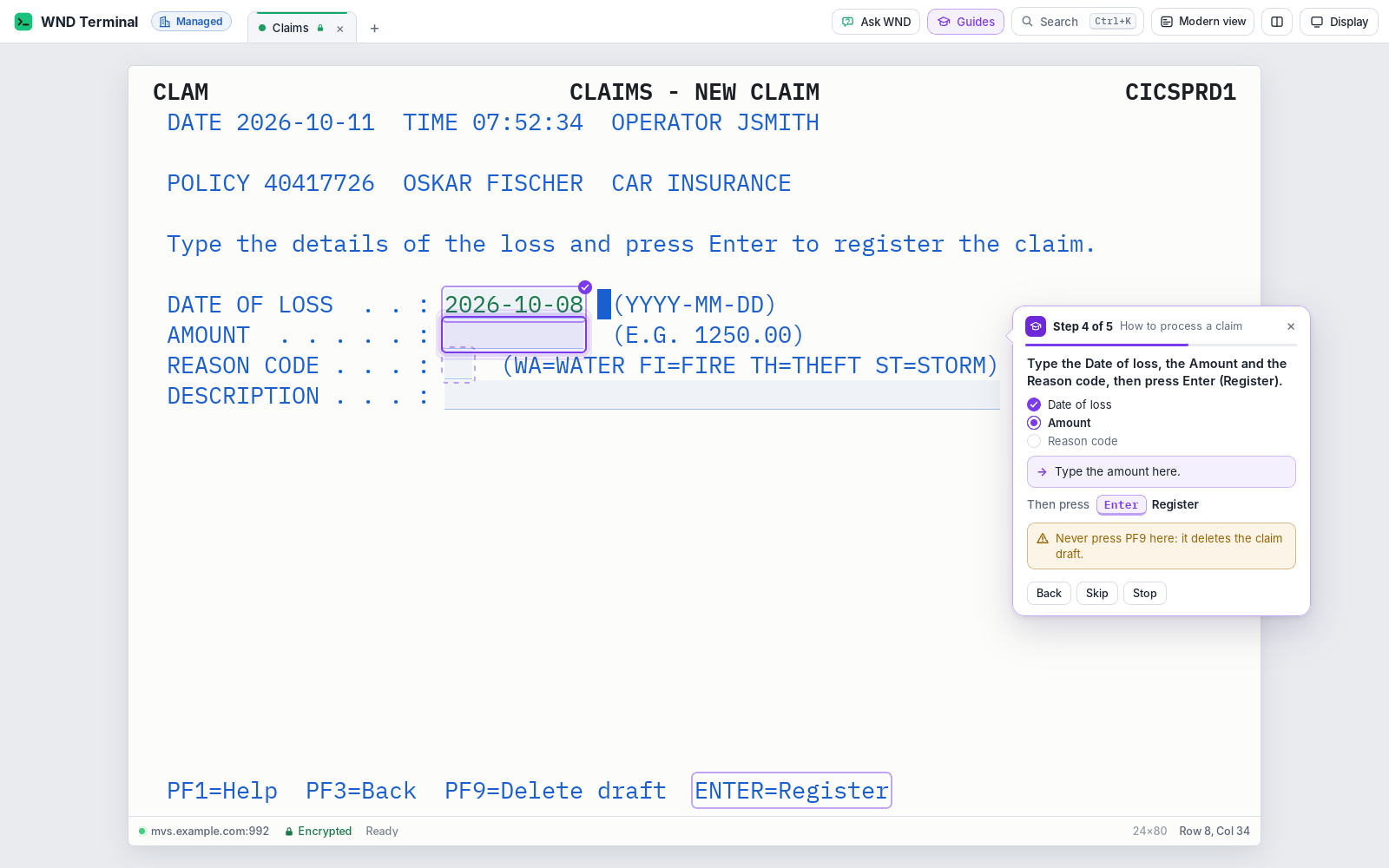
Guided training is a WND Terminal feature for teaching tasks that run across mainframe or IBM i screens. A trainer records a task by doing it once on the real system; WND Terminal turns each screen into a step with a plain-English hint. New colleagues then follow the guide on the live screen: the field to type into is outlined with a callout, the key to press pulses, and the guide moves on by itself as each screen appears. Managers see who finished which guide and how long it took.
The problem
Our claims center hires every month. A new rep spends their first weeks with a binder of screen printouts next to the keyboard.
The trainer can sit with five people. We hired forty.
How it works
Record
The trainer chooses Record a guide and does the task on the real system. Each Enter or function key becomes a step: which screen, which fields were typed into and which key was pressed. What was typed is never kept.
Edit
Each hint is already written from the field labels and the key legend. The trainer can rewrite it, show an example value, add a Why note or a Warning (“Never press PF9 here: it deletes the claim draft”), or mark a step optional.
Share
Export the guide, or have IT publish it to everyone from a shared folder.
Follow
New hires open Guides and pick the task. The field is outlined, the key pulses, and the guide moves on when the next screen appears, whatever the data on it.
Track
Managers open Training progress to see each person’s completion and time, sorted by name or by who needs help.
What it does
On the real system, with real data
The guide recognizes each screen by its title, its unchanging text and where its fields are, so it moves on with another customer’s name, today’s date or a different claim number on screen.
Knows when someone is off track
If the screen isn’t the one the guide expects, the callout says so (“Go back with PF3, or Stop”) with a picture of the screen it expects, and picks up when that screen is back.
Never types for anyone
Show me fills in the trainer’s example; the person still presses the key, and nothing is sent until they do.
Callouts that stay out of the way
They never cover the field they point to. Back, Skip and Stop are always there.
Works in Modern view
Callouts point at the form’s inputs and buttons.
Accessible
Screen readers hear the current step.
Guides are files
Each guide is a JSON file you can export, import, version and hand to IT.
In the browser too
The same guides work in WND Terminal in a browser.
Under IT’s control
Every capability in WND Terminal follows the same rules: IT decides, the audit log records it, and nothing is sent to WND Software.
Policy settings IT controls →- Nothing sensitive in a guide. Recording keeps screen titles and labels, the fields typed into and the keys pressed, never what was typed, unless the trainer chooses an example value. Password fields are never kept and can’t be examples.
- IT publishes and protects guides.
GuidesFoldergives everyone the organization’s guides; people can’t change or remove them. Updated guides appear without restarting the app. - IT decides who can record (
AllowGuideRecording). Following guides stays on. - Progress without surveillance. With
GuideProgressFolder, each finished or stopped guide adds one line per person: which guide, how many steps, how long and when. Never anything from the screen.
Faster ramp-up is the pattern with WND

Nationwide cut the time for new developers to work independently from 16 weeks to 7 with Explain this screen. Guided training brings on-the-screen help to new hires in operations, claims and call centers.
Read the Nationwide story →Tested end to end
WND’s tests record a claim transaction across several screens, follow it in another session with different data, go off track and back, use Show me, check the callouts’ positions, follow it in Modern view and check the progress file.
Guided training: questions
Does the guide type for the new hire?
No. Guides show where to type and which key to press. Show me fills in the trainer’s example value, but nothing is sent to the host until the person presses the key.
Do we have to change the host screens?
No. Guides run on the live screens you already have, mainframe (3270) or IBM i (5250).
What if the screen data is different from when the trainer recorded it?
That’s expected. Screens are recognized by their title, unchanging text and field positions, never by the data in them, so the guide moves on with any customer, date or claim number.
What do managers see?
Training progress shows people by guide, how far each person got, the average time to finish, and who needs help, with Save CSV. It never includes screen contents or what was typed.
Can we stop people recording their own guides?
Yes. Set AllowGuideRecording to false; people can still follow your organization’s guides.
Works well with
Record your hardest task once.
In a proof of value, a trainer records one real task and a new hire follows it on day one.