Modern view
One key turns the same live screen into a clean form. Nothing changes on the host, and there’s no project to set up first.
Included in every plan. See pricing
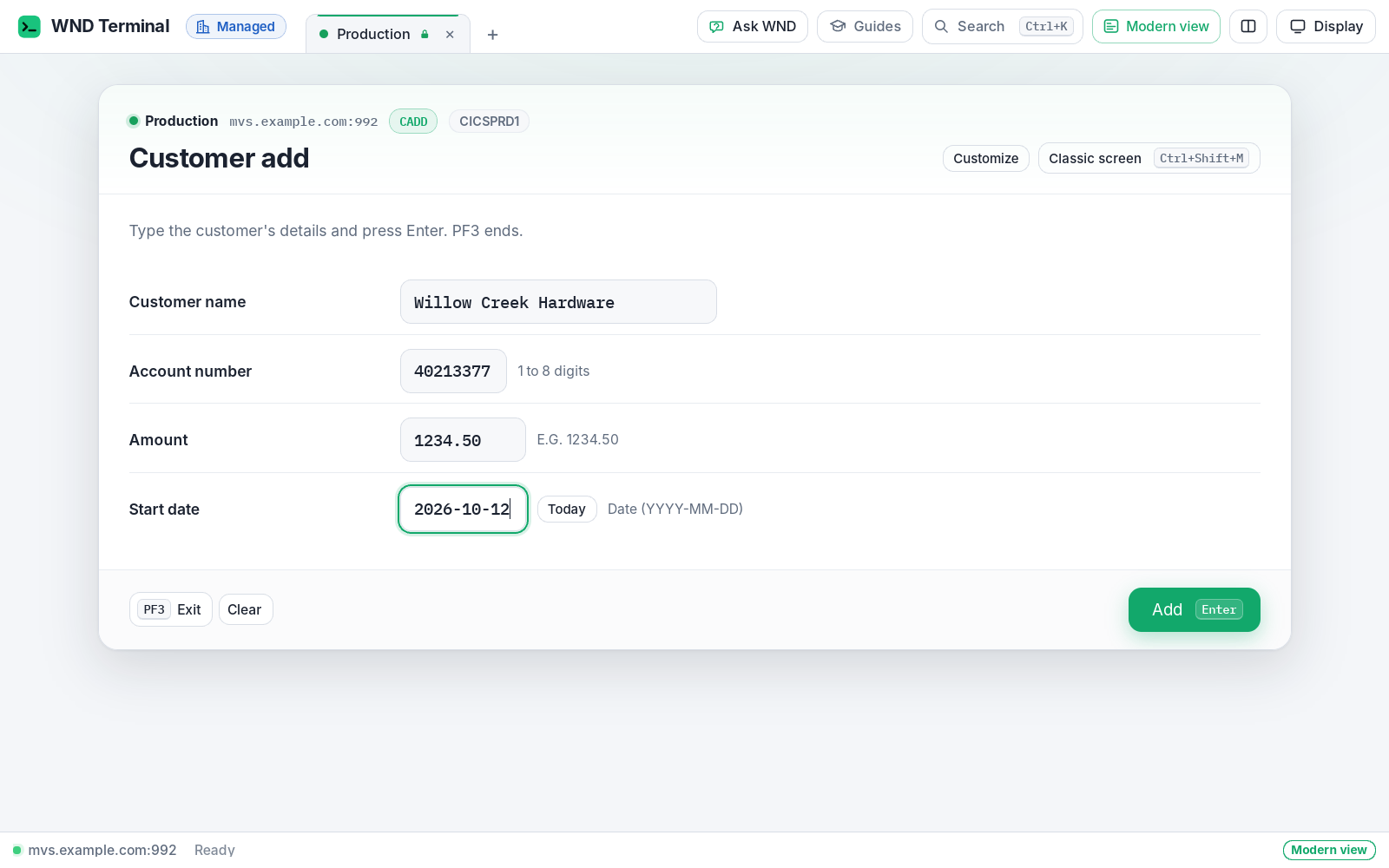
Modern view is a WND Terminal feature that shows a live mainframe (3270) or IBM i (5250) screen as a form: every input field gets a label, function keys become buttons, lists become sortable grids and menus become options to click. It is worked out from the screen itself each time the host sends one, on the same connection, so nothing is reconnected and nothing changes on the host. Press Ctrl+Shift+M (⌘⇧M on a Mac) to switch, and again to switch back.
The problem
New hires take weeks to get comfortable with the screens. “CUST NM . . :” means nothing to them.
Every screen-modernization quote we’ve had starts with a services project and ends with us maintaining a second application.
How it works
Press Ctrl+Shift+M
On any screen, or click Modern view in the toolbar. The same live session now shows as a form.
Work as usual
Typing in the form types into the real field: the field’s length, insert mode and what it accepts all hold. The host sees the cursor where it expects it.
Improve a screen, if you like
Customize lets you rename a label, hide part of the screen, or show a field as a date. Save it as a screen layout, used every time that screen appears.
Give everyone the same layouts
IT puts layout files on a share and sets one policy setting. Everyone gets them; nobody can change them.
What it does
Labels for every input field
Taken from the text to the left or above, without dot leaders and colons, in sentence case when the screen is all caps. Text after a field, such as “(1 TO 8 DIGITS)”, becomes its hint.
Inputs that behave
Numeric fields take only numbers. Hidden fields are password fields. Date fields offer Today. Tab moves in the screen’s order. IBM i fields that need Field Exit get it.
Function keys as buttons
“F3 Exit”, “F12 Cancel”, “PA1”, with Enter as the main button, named for what the screen says it does, such as “Add”. The keyboard still works.
Messages as banners
Red for errors, green for confirmations (“CUSTOMER 000123 ADDED”). While the host is busy, the form says so.
Lists as grids
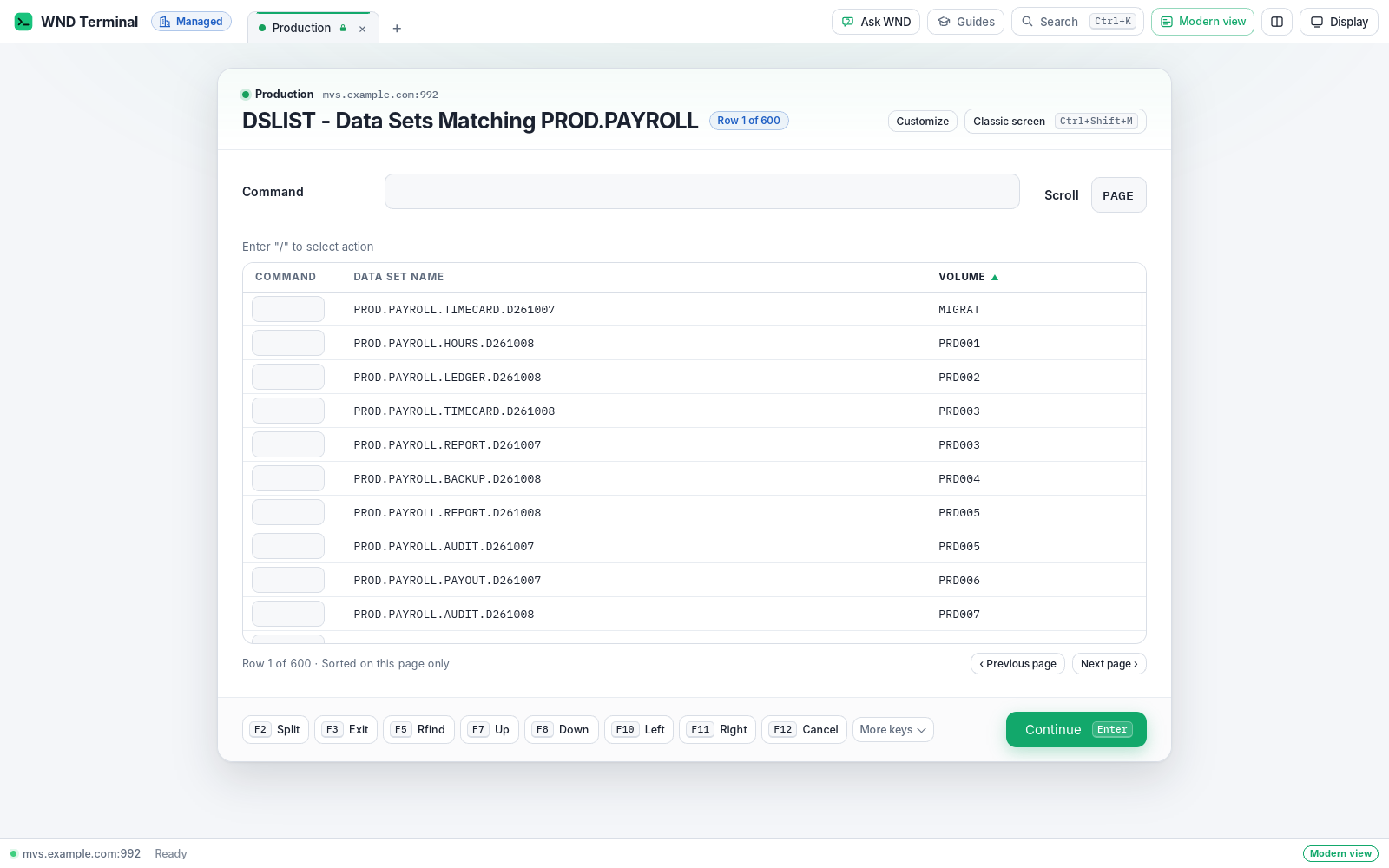
With the screen’s column headings. Click a heading to sort the page on screen. Each row’s option field (ISPF line commands, SDSF NP, IBM i Opt) stays in its row, so “S” still goes to the right job.
Menus as options to click
A click types the option and presses Enter.
IBM i graphical windows
Radio buttons, check boxes and push buttons stay real controls.
Remembered per connection
A connection opened in Modern view opens that way next time. TSO READY and other unformatted screens show a command box.
Under IT’s control
Every capability in WND Terminal follows the same rules: IT decides, the audit log records it, and nothing is sent to WND Software.
Policy settings IT controls →- No host changes. A layout changes only how the screen is shown. What’s typed goes into the screen’s fields exactly as before.
- IT owns the layouts.
ModernViewLayoutspoints to a layout file or folder on a share. Your organization’s layouts come first; people can’t change or remove them. - IT can turn it off (
AllowModernView= false): no button, no shortcut, no command. - Layouts are plain JSON files. Each names the screen it matches (by title and text on the screen) and what changes: titles, labels, hidden parts, date fields.
Same bytes to the host
Tested in the real app
WND fills a CICS-style Customer Add transaction through the form and checks that the mainframe received exactly the bytes typed. It also sorts an ISPF data set list and types a line command into a sorted row, and fills IBM i’s data entry and customer entry screens, covering every kind of 5250 field.
Screens it is tested on
An ISPF primary option menu, an ISPF data set list, a CICS data entry map, an SDSF job list, TSO’s READY, logon and password screens, and IBM i’s Sign On, main menu, spooled file list, entry and results screens and a graphical window.
Modern view: questions
Does Modern view need changes on the mainframe or IBM i?
No. It is worked out from the screen the host already sends, on the same live connection. What’s typed goes into the real fields exactly as before.
Do we need a services project or a screen-mapping tool?
No. Modern view works on any screen without setup. Screen layouts are optional, for screens you want to improve, and anyone can make one in the app with Customize.
Does it work on IBM i?
Yes. It works on mainframe (3270) and IBM i (5250) screens of any size, including IBM i’s graphical windows with radio buttons, check boxes and push buttons.
Can people still use the classic screen?
Yes. The same key, Ctrl+Shift+M, switches back at any time. WND Terminal remembers the choice for each connection.
How does IT roll out improved screens to everyone?
Put screen layout files on a share and set ModernViewLayouts in the policy. Everyone gets those layouts; people can add their own but can’t change IT’s.
Does sorting a list change the data on the host?
No. Sorting applies to the page shown on screen. The host’s list isn’t changed, and each row’s option field still goes to the right row.
Works well with
Pick your most confusing screen.
We’ll show it in Modern view on your own system in the first week of a proof of value.